
Preparing for Teaching Online
What can you do right now to prepare for Teaching Online?
You may have noticed icons appearing by the files in your Blackboard Course.
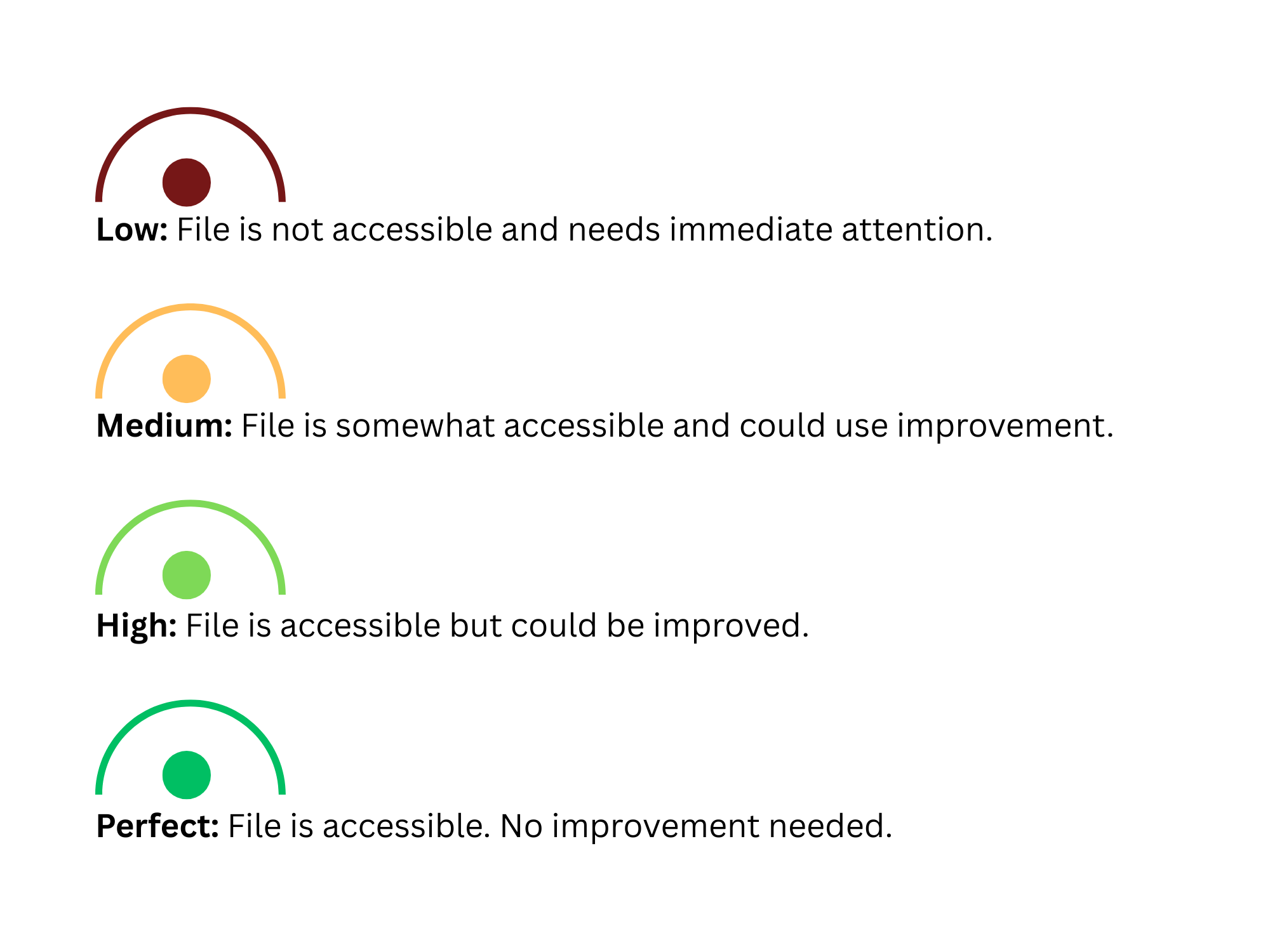
Ally scans files uploaded to Blackboard and provides guidance and tips for lasting improvements. You can expect to:
- Receive feedback in your course on the accessibility of your files
- Improve content accessibility with Ally's step-by-step instructions
You may also find the Ally FAQ Help page of use.
Please contact NSU Online with any questions.
- Quality Matters Remote Instruction Checklist
- Check your VPN access. Make sure you have access to the files you need. More information about this can be found at the Information Technology Services (ITS) Client Portal.
- NSU uses Blackboard Ultra with the Original View. This is important when viewing tutorials. Log-in and locate your course(s) in Blackboard.
- Familiarize yourself with Blackboard
Review your syllabus
Determine if any changes need to be made to assignments listed in the syllabus. (i.e. in-class presentations)
We recommend using Zoom for synchronous conversations
From a University Computer, search for Zoom or look for and double click the Zoom
icon.
Log-in with your NSU credentials. If you are using a personal computer, there are
prerequisites. You will need to download the Zoom Desktop Client. After you have downloaded this free package, you will need to log-in with your NSU
credentials. Zoom has helpful articles and tutorials.
- Place course content in Blackboard
- Upload your syllabus under the content area found in the left navigation of your Blackboard course.
- Do a test run with your students. Post your syllabus and create a question and answer discussion board in Blackboard and require your students to respond.
- Assessments and Assignments
- Written assignments can be created with Blackboard Assignments Tool.
- Quizzes and tests can be created using the Blackboard Test Tool.
- Create alternative assessments or activities as needed for an online format (i.e. labs, in-class discussions, presentations, meetings) using tools such as Blackboard Discussion Board and Zoom.
- Verify your assessments are appearing in the Grade Book.
For more assistance forming strategies for your online classroom, contact NSU Online at 918.444.5855 or email at nsuonline@nsuok.edu
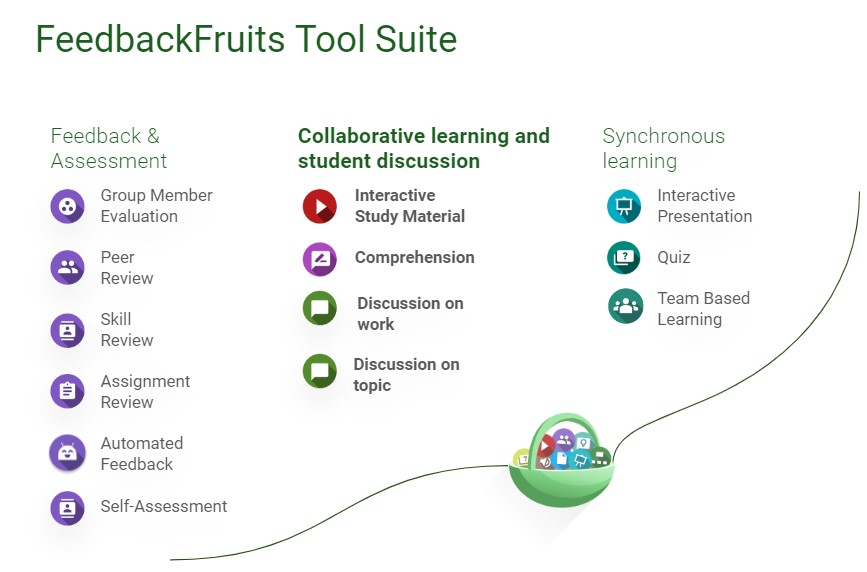
Here are some benefits you will enjoy by using the FeedbackFruits tool suite:
- Easy ways to comply with Federal Regular and Substantive Interaction (RSI) and HLC requirements: RSI regulations and HLC standards require instructors to create opportunities for strong student-to-student and instructor-to-student interactions and to assess students' higher order skills and learning. Here is more information on how FeedbackFruits can support you with RSI and HLC standards.
- Time-saving: FeedbackFruits simplifies the process of setting up new activities. You can create your own activity or use a pre-built template and copy and reuse activities later. It also supports automated grading and automated feedback on students' work.
- Intuitive: All learning activities have the same user-friendly interface, making them easy to navigate and showing students how they progress through an assignment. They have a modern look and feel, which students will recognize from their other online interactions, supporting discussion threads, voice memos, and videos.
- All-in-one solution: FeedbackFruits is directly integrated with Blackboard, which allows you to use your groups and feed grades into the grade book. It also automatically synchronizes deadlines to the calendar.
- Increase student engagement and retention: Tools include interactive audio, interactive video, annotating, being able to respond with audio, video, writing, links, photos, etc., and more.
To learn more about the tools, please check out these resources:
- Instructional videos: How to create an activity in Blackboard, Setting up a FeedbackFruits activity, Instructions for students
- Help articles for all the tools (step-by-step): FeedbackFruits help center
- 24/5 personal support within 5 minutes (Mon-Fri): Email FeedbackFruits support
If you have any questions about the pilot process or need further assistance, please don't hesitate to contact our NSU Online team. We would love to set you up for success using the tools in your courses!
Thank you for considering using FeedbackFruits, and we hope you enjoy using the tool suite!
Sessions
Facilitated by Feriel Bouricha and Milou Maassen - FeedBackFruits
Whether you've already used FeedbackFruits in your courses, you've just started, or are just curious to know more. This workshop will provide you with valuable insights to elevate your teaching strategies and drive student success by leveraging the in-tool FeedbackFruits analytics.
Facilitated by Feriel Bouricha and Milou Maassen - FeedBackFruits
With Special Guest: Dr. Janaki Iyer, College of Science and Health Professions
We invite you to an inspiration session led by Dr.Iyer, Associate Professor of Biology & FeedbackFruits. You will learn more about how Dr.Iyer fostered student engagement in her courses by leveraging the Interactive Document and Interactive Video Tools. In this open session, Dr.Iyer will showcase her use cases and share her reflections/feedback on using the tools.
Facilitated by Erik Harris - NSU Online
Answer the question of how to get started with FeedBackFruits in this "how to" demonstration. This 30-minute walkthrough will demonstrate how to connect your Online Course with FeedBackFruits and what comes with that. We will also view how to add videos from YouTube and Echo360 to the Interactive Video tool.
Facilitated by Jerreth McLaughlin - NSU Online
With Special Guests:
Dr. Jason Proctor - College of Education
Ms. Jodena Brown - Library Services
Dr. Kathy Seibold - College of Education
Dr. Kimberly Mathe Cuellar - College of Business and Technology
Dr. Tracy Freudenthaler - College of Science and Health Professions
Later Sessions
Echo360

Echo360 is an innovative educational platform with a strong focus on video features. In addition to recording and sharing lectures, instructors can download and edit Zoom recordings, enhancing the learning experience. Students enjoy flexible access to video content and participate with embedded elements like quizzes and discussions. With robust analytics and Blackboard integration, Echo360 enables personalized education strategies and provides a secure alternative to YouTube for video-sharing in educational settings.
You can access your EchoVideo Library through Blackboard as well, and signing on is super simple - just use the "Single Server Sign On" and you will be redirected to create an Echo360 Account using your NSU Login. Through the Echo360 platform, you can add content to your course library, and manage all aspects of the videos within the platform.
Please reach out to NSU Online with any questions, and also view this page for help getting started!
E-mail: nsuonline@nsuok.edu
Phone: 918-444-5855